Showing posts with label IWB. Show all posts

Monday, May 14, 2007

Cool Tech Tool: Gizmos

The Mimio is called an interactive whiteboard for a reason... it's meant to be interactive. The ability to capture notes, manipulate objects, and use the whiteboard as a mouse is great; the engaging part for students is using the Mimio to interact with the presented content. Wouldn't it be great if there was a website filled with interactive activities? If you are a 6-12 math or science teacher, you're in luck. The ExploreLearning website has created a variety of interactive "Gizmos" to help students visualize math and science concepts.

Mathematics

Science

The Gizmos can be used on individual computers or displayed to an entire class with a LCD projector. Combine these activities with a Mimio and you'll have students interacting with concepts you never thought possible. Take a look at the demonstration activities... like what you see? Click the *Free Trial button in the upper-left corner; this will give you a 30-day free trial to the Gizmos. Contact me if you think this would be a useful tool for you and your students.

Friday, March 02, 2007

i.e. (Interactive Educator)

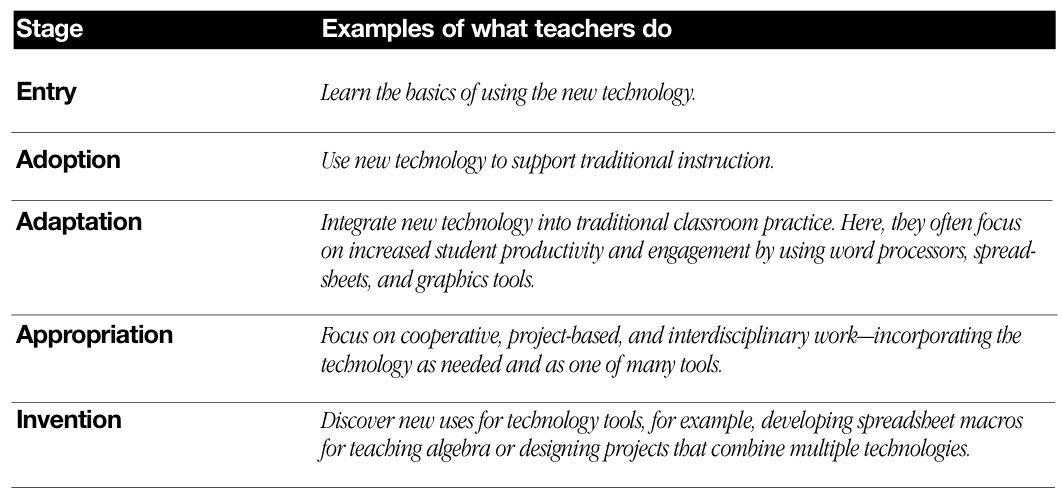
We have a number of teachers in our district who are starting to enhance lessons with interactive whiteboards. The technology is easy to use, but designing lessons that use the technology efficiently and effectively can be challenging. Research shows that teachers often start by applying new technology with traditional teaching practices (refer to ACOT: Stages of Technology). Using this technology with traditional teaching methods will capture students' attention, but improved achievement happens with students "interact" with the lesson.

Interactive whiteboards come with Notebook software that allows teachers to design lesson plans, similar to creating a PowerPoint presentation. The advantage of Notebook is its ability to manipulate objects during the presentation. I read an article, "Grand Slam Technology," in i.e. (Interactive Educator) about a teacher who Incorporated her students' hobbies into lessons to capture their attention. In this example, the teacher combined her students' interest in Major League Baseball with a lesson on identifying the states. A blank map was displayed on the interactive whiteboard with a list of MBL team logos. Students were asked to place the team logos over the appropriate states. This is just one example of how this technology can engage students and improve achievement.
Resources:

Monday, December 04, 2006

Mimio Interactive Whiteboard

You might be more familiar with the term SMARTboard… it is the “Kleenex” of interactive whiteboards. There are several technology products on the market now that fall into the category of interactive whiteboards. These tools all have a few things in common… they use a LCD projector to project a computer screen onto the whiteboard; they have a “stylus” that allows the user to control the projected image like a mouse; and can be used as a writing surface to make notes on the projected image. Most importantly, students can interact with the content on a whole new level.

How is a Mimio different than just using a projector and writing notes with a dry-erase marker? Let’s use PowerPoint as an example. You have your slides created and information organized. You’ve included bulleted notes, images, a webpage, and even a short video clip; but instead of standing at the computer to present the information, you can present where the information is being displayed. A student has a question? You can reinforce the concept with notes directly on the slide (or image, website, video, etc.). If you are teaching this lesson again, those notes can be saved and displayed again for the next class. A few simple review questions could be displayed at the end of the presentation. Have students interact with the Mimio by answering the questions and moving objects (such as a rectangle) to reveal the correct answer.

Being the lesson is presented electronically; it can be saved in a variety of formats. Print the notes for study guides or to meet IEP requirements. If a lot of students are absent for the lesson, it can be posted to your TeacherWeb site to be viewed or printed online. The saved lesson can be retrieved next trimester or next year and easily modified.

The middle school and high school currently have a number of Mimios in use with a few available on a checkout basis. If you are interested in learning more, please join Steve Mefford, a Mimio sales representative, for a product demonstration on Wednesday, December 6 at 7:00 am at the Middle School (Kim Borwege’s computer lab).

Monday, October 02, 2006

Cool Tech Tool: Class Timers

Class Timers Keeping students on task and helping them manage time can be a challenge. A classroom timer is a great tool to keep your planned activities on schedule. Display the timer with a LCD projector and the whole class will know how much time remains to complete the activity.

The two timers listed below are free and easy to use. ScreenTimer fills the entire screen for a quick and easy countdown. [screenshot] The drawback? If, for example, you have directions for an activity displayed on a PowerPoint slide, ScreenTimer will cover the entire slide. In this case, a better timer might be Cool Timer. It gives you the option to choose a large or small timer that will "float" over the slide. [screenshot]

To try this Cool Tech Tool, follow the steps below:

  1. Download ScreenTimer or CoolTimer
  2. Save to the desktop
  3. Double-click "setup" or "ctimer"
  4. Follow the install steps

The timer should now be loaded on your computer. In the lower-left corner, click...

  1. Start
  2. Select "Programs"
  3. Click "Screen Timer" or "Cool Timer"